
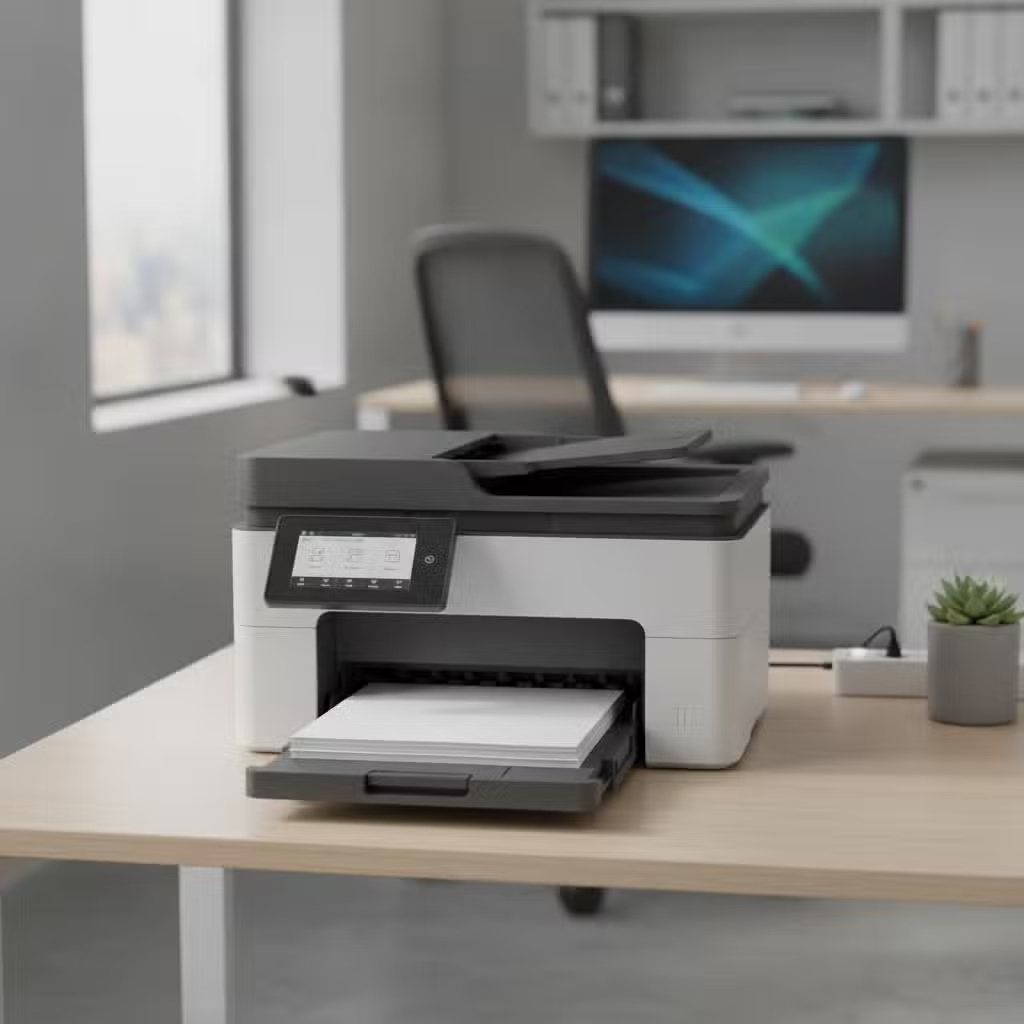
In the fast-paced environment of an office, a smoothly running printer is essential for maintaining productivity. Printer maintenance is often overlooked until a problem arises, leading to unnecessary downtime and frustration. By implementing regular maintenance practices, office managers and IT professionals can prevent common issues such as paper jams and enhance the efficiency of their printing operations.
Quick Fix: How to Instantly Resolve a Paper Jam?
If you’re dealing with a paper jam, first turn off the printer and gently pull out the paper in the direction of the paper path to avoid tearing. Check for any small bits of paper that might be stuck and ensure the paper tray is not overloaded. Restart the printer to see if the issue is resolved.
Essential Steps for Printer Maintenance
- Regularly clean the printer’s interior
- Use high-quality paper and ink
- Keep firmware updated
- Inspect and replace worn-out parts
- Ensure proper paper loading
- Schedule routine professional servicing
- Monitor printer usage and performance
Clean the Printer’s Interior Regularly
Dust and debris accumulation inside the printer can lead to paper jams and poor print quality. Regular cleaning helps maintain the printer’s performance and longevity. For more information, check out these Printer maintenance tips. Use a soft, lint-free cloth to wipe down the interior components, and avoid using compressed air, which can push debris further into the printer.
Pay special attention to the rollers, as they are crucial for paper feeding. Gently clean them with a damp cloth to remove any residue that might cause slippage or jams. Regular cleaning not only prevents issues but also ensures consistent print quality.


HP OfficeJet Pro 8125e Colour Inkjet All-in-One Printer

Brother Professional MFC-J5740DW Colour Inkjet All-in-One Printer Wireless Printing A3 White

Brother DCP-L3560CDW Colour Laser All-in-One Printer A4 Light Grey

Brother HL-L2400DW Mono Laser Printer A4 Dark Grey

Brother MFC-L2800DW Mono Laser Printer A4 Dark Grey
Use High-Quality Paper and Ink
The quality of paper and ink used in your printer significantly impacts its performance. Low-quality paper can shed fibers that clog the printer, while substandard ink can cause streaks and smudges. Always use paper that matches the printer’s specifications and opt for manufacturer-recommended ink cartridges.
Consider the weight and texture of the paper, as these factors affect how the printer handles it. Using the right supplies not only prevents jams but also enhances the overall output quality, making your documents look professional.
Summary Table of Common Printer Issues and Solutions
| Issue | Solution |
|---|---|
| Paper Jam | Clear the jam and reduce paper load |
| Streaky Prints | Clean printheads regularly |
| Slow Printing | Check network and print settings |
| Printer Offline | Restart printer and check connections |
Keep Firmware and Drivers Updated
Printer manufacturers frequently release firmware updates to fix bugs and improve functionality. Keeping your printer’s firmware and drivers up-to-date ensures optimal performance and can prevent issues related to compatibility and connectivity.
Regularly check the manufacturer’s website for updates and install them promptly. Updated firmware can also introduce new features that enhance the printer’s capabilities, making it more efficient and reliable in the long run.
Conclusion: The Importance of Regular Printer Maintenance
Regular printer maintenance is crucial for preventing common issues like paper jams and ensuring efficient operation. By following these practical steps, office managers and IT professionals can enhance productivity and reduce downtime.
Remember, a well-maintained printer not only saves time and resources but also supports the overall workflow of your office. For more resources on printer maintenance and supplies, explore our recommended products.
Frequently Asked Questions
How often should I clean my printer?
It’s recommended to clean your printer every few months, or more frequently if you use it heavily. Regular cleaning helps prevent dust buildup that can cause jams and affect print quality.
What should I do if my printer frequently jams?
Check the paper type and ensure it’s compatible with your printer. Inspect the interior for any debris and clean the rollers. If the problem persists, consider professional servicing to diagnose underlying issues.
Why is my printer producing streaky prints?
Streaky prints are often caused by clogged printheads. Run the printer’s cleaning cycle to clear any blockages. If the issue continues, manually clean the printheads or replace them as necessary.
How can I improve my printer’s speed?
To improve printing speed, reduce print quality settings for less critical documents, and ensure your printer is connected to a stable network. Regularly update your printer’s firmware and drivers for optimal performance.


